2016年1月7日 星期四
CentOS 7 Install Postfix to configure SMTP server
from: http://www.server-world.info/en/note?os=CentOS_7&p=mail

2015年8月31日 星期一
CentOS 7 add user to sudo Privileges
source: https://www.digitalocean.com/community/tutorials/how-to-add-and-delete-users-on-a-centos-7-server
If you are currently signed in as the
root user, type:gpasswd -a username wheel
CentOS 7 install 7zip
source: http://geekyadmins.com/unzip-7z-file-centos-7/
How to install
Step 01: Please login using your privileged account using the following command.su –Step 02: Download the repo using the command given below.
wget http://pkgs.repoforge.org/rpmforge-release/rpmforge-release-0.5.3-1.el7.rf.x86_64.rpmStep 03: Now install the downloaded rpm using
rpm -ivh rpmforge-release-0.5.3-1.el7.rf.x86_64.rpmStep 04: Now you need to install the package
yum install p7zipStep 05: To unzip the file use the following command
7za x
2015年5月17日 星期日
在 ubuntu 14.04 安裝及啟用 python + django 以及 啟用 apache 的 mod_wsgi 模組
ref: https://www.digitalocean.com/community/tutorials/how-to-serve-django-applications-with-apache-and-mod_wsgi-on-ubuntu-14-04
以下為網頁備份資料。
How To Serve Django Applications with Apache and mod_wsgi on Ubuntu 14.04
Introduction
Django is a powerful web framework that can help you get your Python application or website off the ground quickly. Django includes a simplified development server for testing your code locally, but for anything even slightly production related, a more secure and powerful web server is required.In this guide, we will demonstrate how to install and configure Django in a Python virtual environment. We'll then set up Apache in front of our application so that it can handle client requests directly before passing requests that require application logic to the Django app. We will do this using the
mod_wsgi Apache module that can communicate with Django over the WSGI interface specification.Prerequisites and Goals
In order to complete this guide, you should have a fresh Ubuntu 14.04 server instance with a non-root user withsudo privileges configured. You can learn how to set this up by running thorugh our initial server setup guide.We will be installing Django within a Python virtual environment. Installing Django into an environment specific to your project will allow your projects and their requirements to be handled separately.
Once we have our application up and running, we will configure Apache to interface with the Django app. It will do this with the
mod_wsgi
Apache module, which can translate HTTP requests into a predictable
application format defined by a specification called WSGI. You can find
out more about WSGI by reading the linked section on this guide.Let's get started.
Install Packages from the Ubuntu Repositories
To begin the process, we'll download and install all of the items we need from the Ubuntu repositories. This will include the Apache web server, themod_wsgi module used to interface with our Django app, and pip, the Python package manager that can be used to download our Python-related tools.To get everything we need, update your server's local package index and then install the appropriate packages:
sudo apt-get update
sudo apt-get install python-pip apache2 libapache2-mod-wsgi
Configure a Python Virtual Environment
Now that we have the components from the Ubuntu repositories, we can start working on our Django project. The first step is to create a Python virtual environment so that our Django project will be separate from the system's tools and any other Python projects we may be working on.We need to install the
virtualenv command to create these environments. We can get this using pip:sudo pip install virtualenv
virtualenv installed, we can start forming our
project. Create a directory where you wish to keep your project and
move into the directory:mkdir ~/myproject
cd ~/myproject
virtualenv myprojectenv
myprojectenv within your myproject directory. Inside, it will install a local version of Python and a local version of pip. We can use this to install and configure an isolated Python environment for our project.Before we install our project's Python requirements, we need to activate the virtual environment. You can do that by typing:
source myprojectenv/bin/activate
(myprojectenv)user@host:~/myproject$.With your virtual environment active, install Django with the local instance of
pip by typing:pip install django
Create and Configure a New Django Project
Now that Django is installed in our virtual environment, we can create the actual Django project files.Create the Django Project
Since we already have a project directory, we will tell Django to install the files here. It will create a second level directory with the actual code, which is normal, and place a management script in this directory. The key to this is the dot at the end that tells Django to create the files in the current directory:django-admin.py startproject myproject .
Adjust the Project Settings
The first thing we should do with our newly created project files is adjust the settings. Open the settings file with your text editor:nano myproject/settings.py
At the bottom of the file, we will add a line to configure this directory. Django uses the
STATIC_ROOT
setting to determine the directory where these files should go. We'll
use a bit of Python to tell it to use a directory called "static" in our
project's main directory:STATIC_ROOT = os.path.join(BASE_DIR, "static/")
Complete Initial Project Setup
Now, we can migrate the initial database schema to our SQLite database using the management script:cd ~/myproject
./manage.py makemigrations
./manage.py migrate
./manage.py createsuperuser
We can collect all of the static content into the directory location we configured by typing:
./manage.py collectstatic
static within your project directory.Finally, you can test your project by starting up the Django development server with this command:
./manage.py runserver 0.0.0.0:8000
:8000:http://server_domain_or_IP:8000
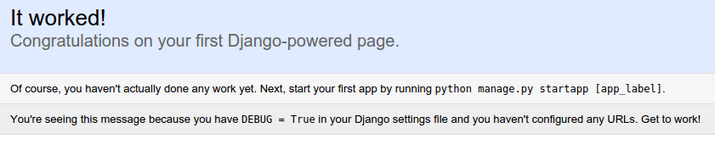
If you append
/admin to the end of the URL in the
address bar, you will be prompted for the administrative username and
password you created with the createsuperuser command: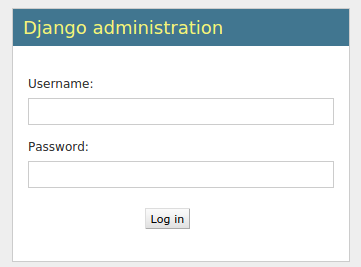
After authenticating, you can access the default Django admin interface:

When you are finished exploring, hit CTRL-C in the terminal window to shut down the development server.
We're now done with Django for the time being, so we can back out of our virtual environment by typing:
deactivate
Configure Apache
Now that your Django project is working, we can configure Apache as a front end. Client connections that it receives will be translated into the WSGI format that the Django application expects using themod_wsgi module. This should have been automatically enabled upon installation earlier.To configure the WSGI pass, we'll need to edit the default virtual host file:
sudo nano /etc/apache2/sites-available/000-default.conf
To start, let's configure the static files. We will use an alias to tell Apache to map any requests starting with
/static
to the "static" directory within our project folder. We collected the
static assets there earlier. We will set up the alias and then grant
access to the directory in question with a directory block:
    . . .

    Alias /static /home/user/myproject/static
user wsgi.py file within the
second level project directory where the Django code is stored. To do
this, we'll use a directory section with a file section inside. We will
grant access to the file inside of this nested construct:
    . . .

    Alias /static /home/user/myproject/static
user WSGIDaemonProcess directive to set this up.This directive takes an arbitrary name for the process. We'll use
myproject
to stay consistent. Afterwards, we set up the Python path where Apache
can find all of the components that may be required. Since we used a
virtual environment, we will have to set up two path components. The
first is our project's parent directory, where the project files can be
found. The second is the lib/pythonx.x/site-packages
path within our virtual environment folder (where the Xs are replaced
by the Python version number components). This way, Apache can find all
of the other Python code needed to run our project.Afterwards, we need to specify the process group. This should point to the same name we selected for the
WSGIDaemonProcess directive (myproject in our case). Finally, we need to set the script alias so that Apache will pass requests for the root domain to the wsgi.py file:
    . . .

    Alias /static /home/user/myproject/static
user Wrapping Up Some Permissions Issues
If you are using the SQLite database, which is the default used in this article, you need to allow the Apache process access to this file.To do so, the first step is to change the permissions so that the group owner of the database can read and write. The database file is called
db.sqlite3 by default and it should be located in your base project directory:chmod 664 ~/myproject/db.sqlite3
www-data group, group ownership of the file:sudo chown :www-data ~/myproject/db.sqlite3
sudo chown :www-data ~/myproject
sudo service apache2 restart
Conclusion
In this guide, we've set up a Django project in its own virtual environment. We've configured Apache withmod_wsgi to handle client requests and interface with the Django app.Django makes creating projects and applications simple by providing many of the common pieces, allowing you to focus on the unique elements. By leveraging the general tool chain described in this article, you can easily serve the applications you create from a single server.
2015年4月25日 星期六
Enable 3D HW acceleration on VMWare Workstation 10 on Ubuntu 14.04
ref: http://askubuntu.com/questions/537787/enable-3d-hw-acceleration-on-vmware-workstation-10-on-ubuntu-14-04
在 ubuntu 1404 版本裡,使用 vmware 時, 要將其中的系統啟用 3D 加速功能,如果只是勾選設定檔的 3D 加速,可能還是沒有作用, 必須手動指定。
參考前述連結, 使用 gedit ~/.vmware/preferences 編輯檔案, 加上 mks.gl.allowBlacklistedDrivers = TRUE 這一行, 再重新啟動 vm 裡的系統,就可以支援 3D 加速了。
2015年1月29日 星期四
美國9大IT好職務最賺,軟體工程師名列第一
轉載自 http://www.bnext.com.tw/article/view/id/35168
美國9大IT好職務最賺,軟體工程師名列第一
撰文者:曾筱媛 發表日期:
美國獵人頭網站Glassdoor最近釋出一項調查,排行2015年全美最好的25大職缺,評比項目包括員工薪資、開放職缺數、工作機會等,以5點量表(最低1分、最高5分)形式向全美各行各業員工發放問卷,進行調查。
結果顯示,前25大最好職缺中,有高達9項都跟IT技術有關,包括軟體工程師、行動開發、資料科學家、網路工程師等。顯見科技產業已紮實深入各行各業中,是企業發展的重要利器。數據中也可見全美科技產業的薪資結構和職缺數量。
以下僅列出排名, 詳細內容請參閱資料來源:
第一名:軟體工程師(Software Engineer)
第二名:資料庫管理員(Database Administrator)
第三名:資料科學家(Data Scientist)
第四名:系統架構師(Solutions Architect)
第五名:軟體測試工程師(QA Engineers)
第六名:商業資料分析(Business Analyst)
第七名:網路工程師(Network Engineer)
第八名:IT專案管理經理(IT Project Manager)
第九名:行動開發(Mobile Developer)
結果顯示,前25大最好職缺中,有高達9項都跟IT技術有關,包括軟體工程師、行動開發、資料科學家、網路工程師等。顯見科技產業已紮實深入各行各業中,是企業發展的重要利器。數據中也可見全美科技產業的薪資結構和職缺數量。
以下僅列出排名, 詳細內容請參閱資料來源:
第一名:軟體工程師(Software Engineer)
第二名:資料庫管理員(Database Administrator)
第三名:資料科學家(Data Scientist)
第四名:系統架構師(Solutions Architect)
第五名:軟體測試工程師(QA Engineers)
第六名:商業資料分析(Business Analyst)
第七名:網路工程師(Network Engineer)
第八名:IT專案管理經理(IT Project Manager)
第九名:行動開發(Mobile Developer)
2015年1月27日 星期二
CentOS 7 伺服器安裝
CentOS 7 伺服器安裝
可安裝以下二個來源:
https://www.digitalocean.com/community/tutorials/how-to-install-linux-apache-mysql-php-lamp-stack-on-centos-7
https://www.digitalocean.com/community/tutorials/additional-recommended-steps-for-new-centos-7-servers
訂閱:
文章 (Atom)